Datasets
A dataset is a collection of inputs and expected outputs and is used to test your application. Both UI-based and SDK-based experiments support Langfuse Datasets.
Langfuse Dataset View
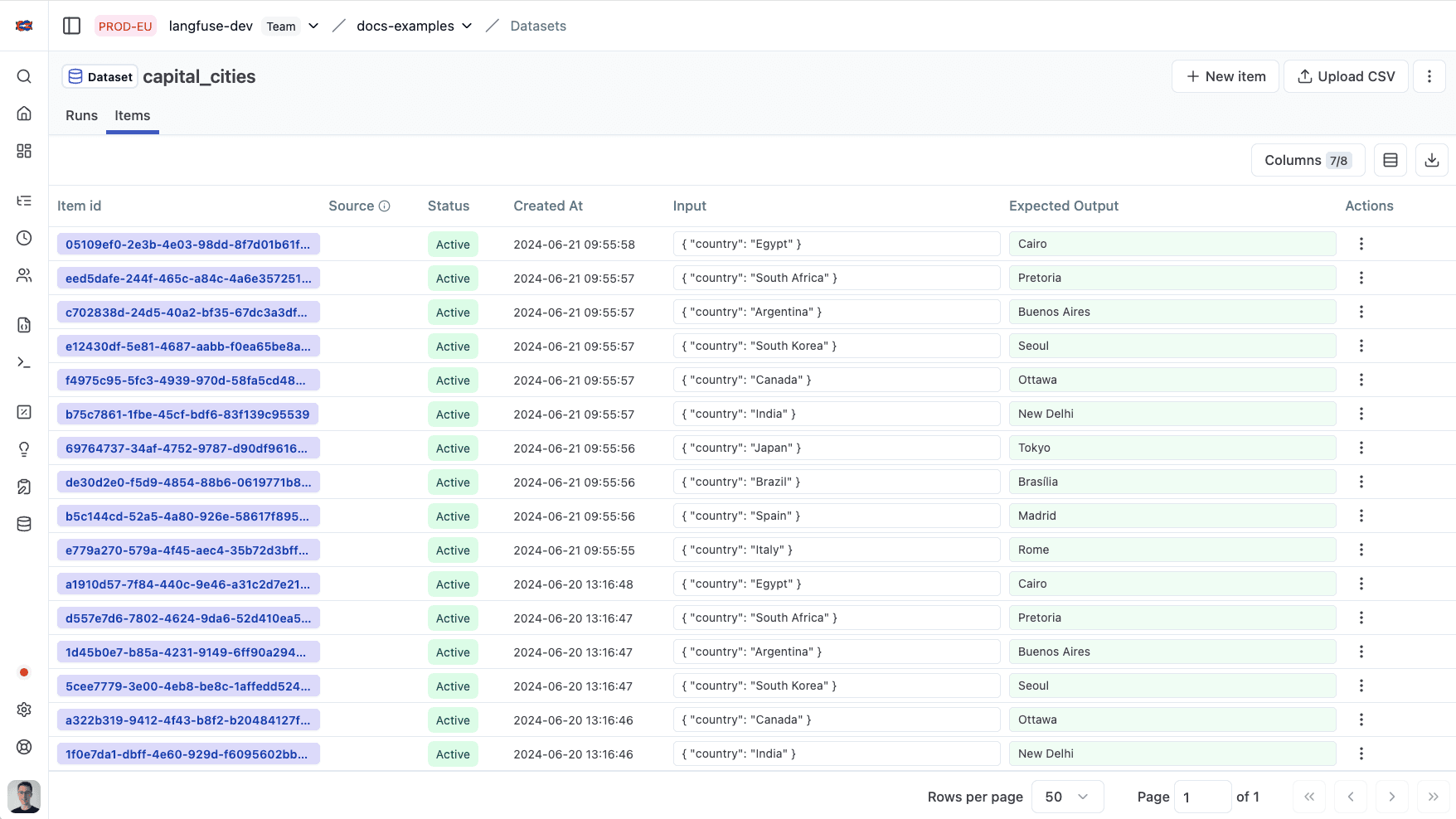
Why use datasets?
- Create test cases for your application with real production traces
- Collaboratively create and collect dataset items with your team
- Have a single source of truth for your test data
Get Started
Creating a dataset
Datasets have a name which is unique within a project.
langfuse.create_dataset(
    name="<dataset_name>",
    # optional description
    description="My first dataset",
    # optional metadata
    metadata={
        "author": "Alice",
        "date": "2022-01-01",
        "type": "benchmark"
    }
)
See Python SDK docs for details on how to initialize the Python client.
import { LangfuseClient } from "@langfuse/client"

const langfuse = new LangfuseClient()

await langfuse.api.datasets.create({
  name: "<dataset_name>",
  // optional description
  description: "My first dataset",
  // optional metadata
  metadata: {
    author: "Alice",
    date: "2022-01-01",
    type: "benchmark",
  },
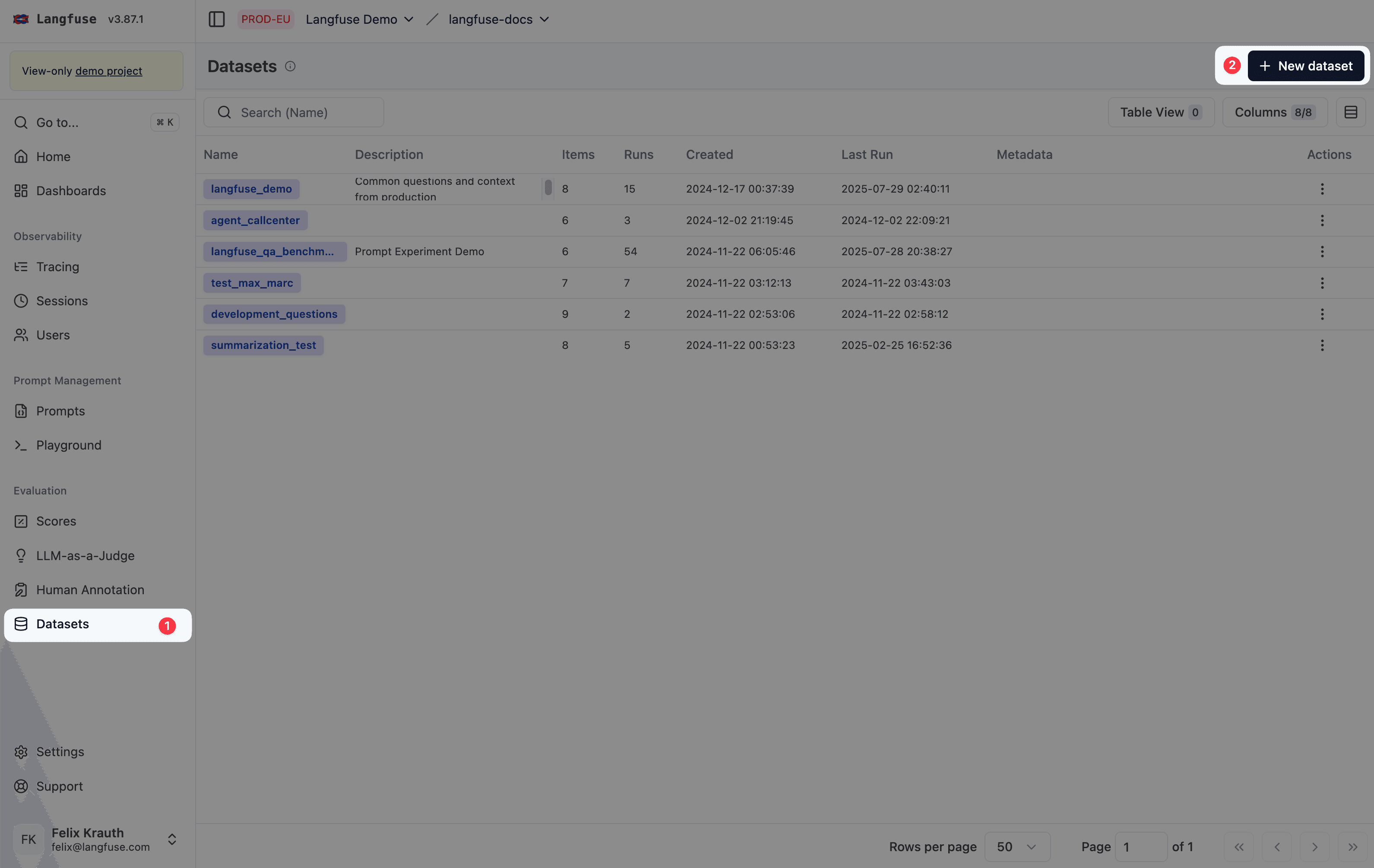
});- Navigate to
Your Project>Datasets - Click on
+ New datasetto create a new dataset.
Upload or create new dataset items
Dataset items can be added to a dataset by providing the input and optionally the expected output. If preferred, dataset items can be imported using the CSV uploader in the Langfuse UI.
langfuse.create_dataset_item(
    dataset_name="<dataset_name>",
    # any python object or value, optional
    input={
        "text": "hello world"
    },
    # any python object or value, optional
    expected_output={
        "text": "hello world"
    },
    # metadata, optional
    metadata={
        "model": "llama3",
    }
)
See Python SDK docs for details on how to initialize the Python client.
import { LangfuseClient } from "@langfuse/client";

const langfuse = new LangfuseClient();

await langfuse.api.datasetItems.create({
  datasetName: "<dataset_name>",
  // any JS object or value
  input: {
    text: "hello world",
  },
  // any JS object or value, optional
  expectedOutput: {
    text: "hello world",
  },
  // metadata, optional
  metadata: {
    model: "llama3",
  },
});
See JS/TS SDK docs for details on how to initialize the JS/TS client.
Dataset uploads are meant to upload the input and expected output. If you already have generated outputs, please use the Experiments SDK.
Select multiple observations from the Observations table, then click Actions → Add to dataset. You can create a new dataset or add to an existing one, with flexible field mapping options to control how observation data maps to dataset items. See Batch add observations to datasets for details.
Dataset Folders
Datasets can be organized into virtual folders to group datasets serving similar use cases.
To create a folder, add slashes (/) to a dataset name. The UI shows every segment ending with a / as a folder automatically.
Create and fetch a dataset in a folder
Use the Langfuse UI or SDK to create and fetch a dataset in a folder by adding a slash (/) to a dataset name.
dataset_name = "evaluation/qa-dataset"

# When creating a dataset, use the full dataset name
langfuse.create_dataset(
    name=dataset_name,
)

# When fetching a dataset in a folder, use the full dataset name
langfuse.get_dataset(
    name=dataset_name
)
This creates and fetches a dataset named qa-dataset in a folder named evaluation. The full dataset name remains evaluation/qa-dataset.
import { LangfuseClient } from "@langfuse/client";

const langfuse = new LangfuseClient();

const datasetName = "evaluation/qa-dataset";
const encodedName = encodeURIComponent(datasetName); // "evaluation%2Fqa-dataset"

// When creating a dataset, use the full dataset name
await langfuse.dataset.create(datasetName);

// When fetching a dataset in a folder, use the encoded name
await langfuse.dataset.get(encodedName);
This creates and fetches a dataset named qa-dataset in a folder named evaluation. The full dataset name remains evaluation/qa-dataset.
In the UI, create a dataset and use a slash (/) in the name field to organize it into a folder. Fetch it by navigating to the folder, clicking on the folder name and clicking on the dataset name in the list.
URL Encoding: When using dataset names with slashes as path parameters in
the API or JS/TS SDK, use URL encoding. For example, in TypeScript: encodeURIComponent(name).
Versioning
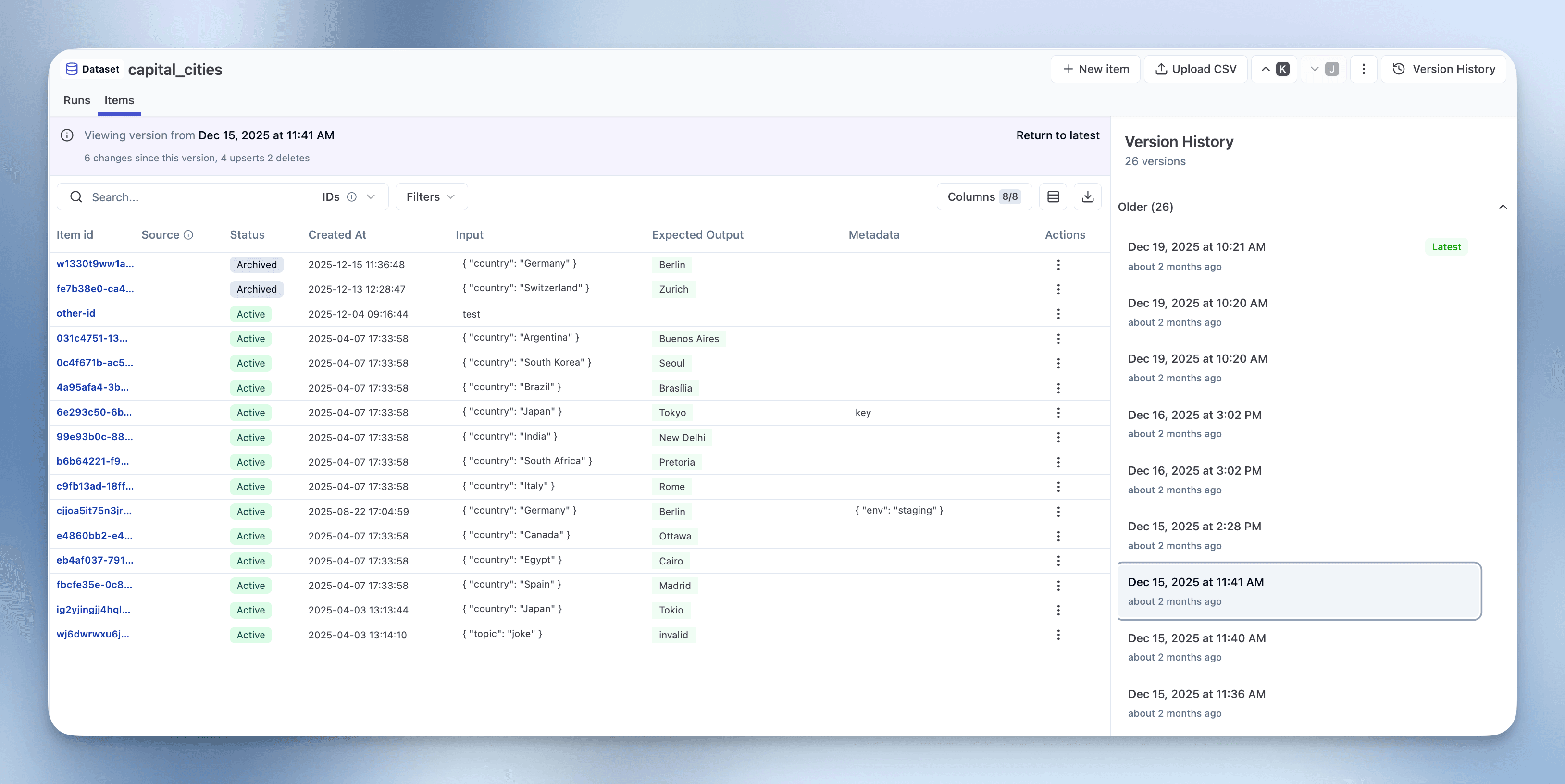
To access Dataset Versions via the Langfuse UI, navigate to: Datasets > Navigate to a specific dataset > Select Items Tab. On this page you can toggle the version view.
Every add, update, delete, or archive of dataset items produces a new dataset version. Versions track changes over time using timestamps.
GET APIs return the latest version at query time by default. You can fetch datasets at specific version timestamps using the version parameter.
Versioning applies to dataset items only, not dataset schemas. Dataset schema changes do not create new versions.
Fetch dataset at a specific version
You can retrieve a dataset as it existed at a specific point in time by providing a version timestamp. This returns only the items that existed at that timestamp.
from langfuse import get_client
from datetime import datetime, timedelta

langfuse = get_client()

# Capture dataset state as of 2025-12-15 at 06:30:00 UTC
version_timestamp = datetime(2025, 12, 15, 6, 30, 0, tzinfo=timezone.utc)

# Fetch dataset at version timestamp
dataset_at_version = langfuse.get_dataset(
    name="my-dataset",
    version=version_timestamp
)

# Fetch latest version
dataset_latest = langfuse.get_dataset(name="my-dataset")
import { LangfuseClient } from "@langfuse/client";
const langfuse = new LangfuseClient();
// Capture the timestamp (use item's createdAt)
const versionTimestamp = new Date("2025-12-15T06:30:00").toISOString();
// Fetch dataset at version timestamp
const datasetAtVersion = await langfuse.dataset.get("my-dataset", {
version: versionTimestamp
});
// Fetch latest version
const datasetLatest = await langfuse.dataset.get("my-dataset");You can view all dataset versions by navigating to Datasets → Select a dataset → Items Tab → Toggle the Version view.
Run experiments on versioned datasets
You can run experiments directly on versioned datasets. This is useful for comparing how your model performs against different dataset versions or reproducing experiment results with the exact dataset state from a specific point in time.
from datetime import timedelta
import time
from langfuse import Langfuse

langfuse = Langfuse()

version_timestamp = datetime(2025, 12, 15, 6, 30, 0, tzinfo=timezone.utc)

# Fetch versioned dataset
versioned_dataset = langfuse.get_dataset("qa-dataset", version=version_timestamp)

# Run experiment on the versioned dataset
def my_llm_application(*, item, **kwargs):
    # Your LLM application logic here
    # For this example, we'll just return the expected output
    return item.expected_output

result = versioned_dataset.run_experiment(
    name="Baseline Experiment v1",
    description="Running on dataset v1",
    task=my_llm_application
)
import { LangfuseClient } from "@langfuse/client";
const langfuse = new LangfuseClient();
// Capture the version timestamp
const versionTimestamp = new Date("2025-12-15T06:30:00").toISOString();
// Fetch versioned dataset
const versionedDataset = await langfuse.dataset.get("qa-dataset", {
version: versionTimestamp
});
// Run experiment on the versioned dataset
const result = await versionedDataset.runExperiment({
name: "Baseline Experiment v1",
description: "Running on dataset v1",
task: async ({ item }) => {
// Your LLM application logic here
// For this example, we'll just return the expected output
return item.expectedOutput;
}
});In the UI, you can select a specific dataset version when running experiments:
- Navigate to Experiments → Run Experiment
- Select your dataset in the Dataset Selection step
- Choose a version from the Dataset Version dropdown
- The dropdown shows available version timestamps
- The experiment will run against the dataset state at that specific point in time
- If no version is selected, the experiment runs against the latest version
This approach ensures reproducibility by allowing you to:
- Re-run experiments on historical dataset versions even after items are updated or deleted
- Compare model performance before and after dataset changes
- Maintain experiment consistency and reproduce exact results from previous runs
- Test improvements against the same baseline dataset version
Schema Enforcement
Optionally add JSON Schema validation to your datasets to ensure all dataset items conform to a defined structure. This helps maintain data quality, catch errors early, and ensure consistency across your team.
You can define JSON schemas for input and/or expectedOutput fields when creating or updating a dataset. Once set, all dataset items are automatically validated against these schemas. Valid items are accepted, invalid items are rejected with detailed error messages showing the validation issue.
langfuse.create_dataset(
    name="qa-conversations",
    input_schema={
        "type": "object",
        "properties": {
            "messages": {
                "type": "array",
                "items": {
                    "type": "object",
                    "properties": {
                        "role": {"type": "string", "enum": ["user", "assistant", "system"]},
                        "content": {"type": "string"}
                    },
                    "required": ["role", "content"]
                }
            }
        },
        "required": ["messages"]
    },
    expected_output_schema={
        "type": "object",
        "properties": {"response": {"type": "string"}},
        "required": ["response"]
    }
)
await langfuse.createDataset({
name: "qa-conversations",
inputSchema: {
type: "object",
properties: {
messages: {
type: "array",
items: {
type: "object",
properties: {
role: { type: "string", enum: ["user", "assistant", "system"] },
content: { type: "string" }
},
required: ["role", "content"]
}
}
},
required: ["messages"]
},
expectedOutputSchema: {
type: "object",
properties: { response: { type: "string" } },
required: ["response"]
}
});Navigate to Datasets → New Dataset or edit an existing dataset → Expand Schema Validation section → Add your JSON schemas → Click Save.
Create synthetic datasets
Frequently, you want to create synthetic examples to test your application to bootstrap your dataset. LLMs are great at generating these by prompting for common questions/tasks.
To get started have a look at this cookbook for examples on how to generate synthetic datasets:
Create items from production data
A common workflow is to select production traces where the application did not perform as expected. Then you let an expert add the expected output to test new versions of your application on the same data.
langfuse.create_dataset_item(
    dataset_name="<dataset_name>",
    input={ "text": "hello world" },
    expected_output={ "text": "hello world" },
    # link to a trace
    source_trace_id="<trace_id>",
    # optional: link to a specific span, event, or generation
    source_observation_id="<observation_id>"
)
import { LangfuseClient } from "@langfuse/client";
const langfuse = new LangfuseClient();
await langfuse.api.datasetItems.create({
datasetName: "<dataset_name>",
input: { text: "hello world" },
expectedOutput: { text: "hello world" },
// link to a trace
sourceTraceId: "<trace_id>",
// optional: link to a specific span, event, or generation
sourceObservationId: "<observation_id>",
});In the UI, use + Add to dataset on any observation (span, event, generation) of a production trace.
Batch add observations to datasets
You can batch add multiple observations to a dataset directly from the observations table. This is useful for quickly building test datasets from production data.
The field mapping system gives you control over how observation data is transformed into dataset items. You can use the entire field as-is (e.g., map the full observation input to the dataset item input), extract specific values using JSON path expressions or build custom objects from multiple fields.
- Navigate to the Observations table
- Use filters to find relevant observations
- Select observations using the checkboxes
- Click Actions → Add to dataset
- Choose to create a new dataset or select an existing one
- Configure field mapping to control how observation data maps to dataset item fields
- Preview the mapping and confirm
Batch operations run in the background with support for partial success. If some observations fail validation against a dataset schema, valid items are still added and errors are logged for review. You can monitor progress in Settings → Batch Actions.
Edit/archive dataset items
You can edit or archive dataset items. Archiving items will remove them from future experiment runs.
You can upsert items by providing the id of the item you want to update.
langfuse.create_dataset_item(
    id="<item_id>",
    # example: update status to "ARCHIVED"
    status="ARCHIVED"
)
You can upsert items by providing the id of the item you want to update.
import { LangfuseClient } from "@langfuse/client";

const langfuse = new LangfuseClient();

await langfuse.api.datasetItems.create({
  id: "<item_id>",
  // example: update status to "ARCHIVED"
  status: "ARCHIVED",
});
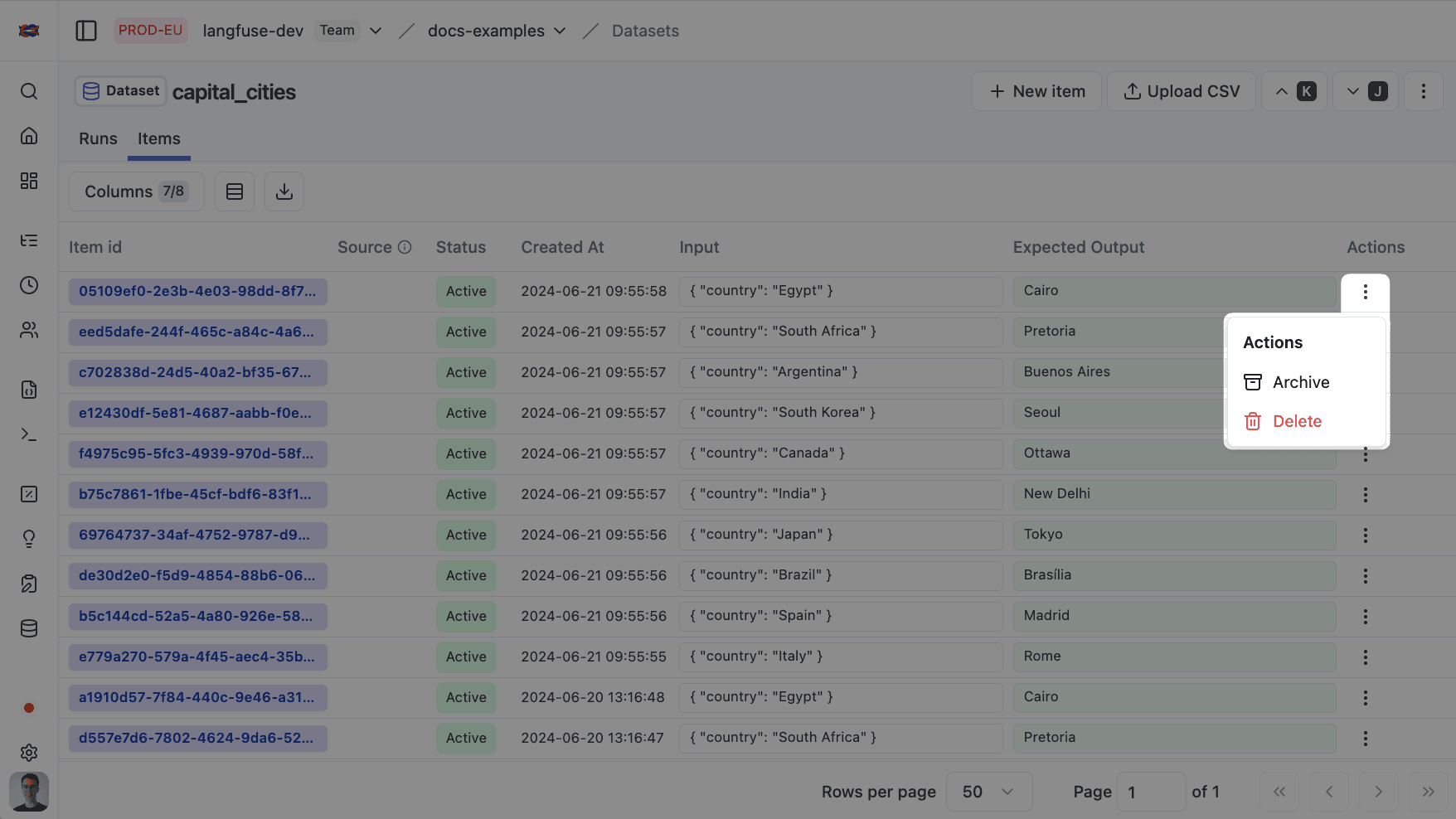
In the UI, you can edit the item by clicking on the item id. To archive or delete the item, click on the dots next to the item and select Archive or Delete.
Dataset runs
Once you created a dataset, you can test and evaluate your application based on it.
Learn more about the Experiments data model.